
Choose how to process
Instant mode starts in the background immediately. Batch mode offers asynchronous processing with lower credit usage.
Translate transcripts with AI in instant or batch mode. Keep the original, edit translated versions and export the result or analyse it in AI Studio.
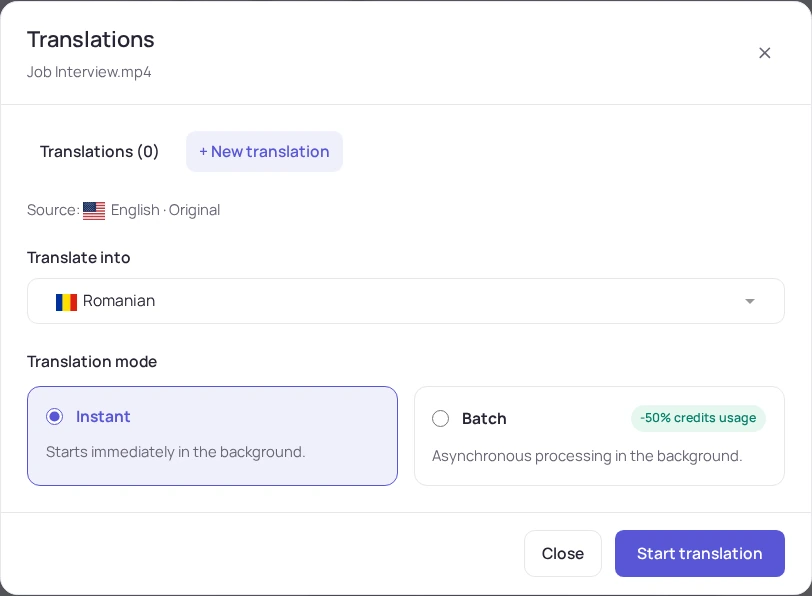
Instant mode starts in the background immediately. Batch mode offers asynchronous processing with lower credit usage.
Creating another translation in the same language makes a new version and preserves previous edits.
Open translations in the transcript editor, export them or select a translation as an AI Studio source.
Start translation from a saved transcript and choose a destination from the application’s translation languages. Translations are separate editable resources. Audio playback and clips still use the original recording; translation does not dub or replace its voices.
Explore all questionsUse its translation action to choose the destination language.
Start instant processing or choose batch processing.
Edit the translated wording and export or analyse the result.
No. The original remains available and translated versions are edited separately.
No. This service translates text. The original audio remains the playback and clip source.
The transcription directory describes speech recognition. Translation has its own destination-language list in the application.
Choose a service in the application or browse every feature and workflow.